A Modern Guide to CDC SQL Server for Real-Time Data Pipelines
Discover how CDC SQL Server captures real-time data changes. Our guide covers setup, querying, and modernizing ETL without impacting your production database.
Change Data Capture, or CDC, is a built-in feature in SQL Server that gives you a detailed record of every change made to your tables. It quietly monitors the database’s transaction log to capture each INSERT, UPDATE, and DELETE as it happens.
The beauty of this approach is that it provides this stream of changes in near real-time without bogging down your source database. This lets you build modern, streaming data pipelines and ditch the slow, clunky batch jobs of the past.
Unlocking Your Data with CDC SQL Server
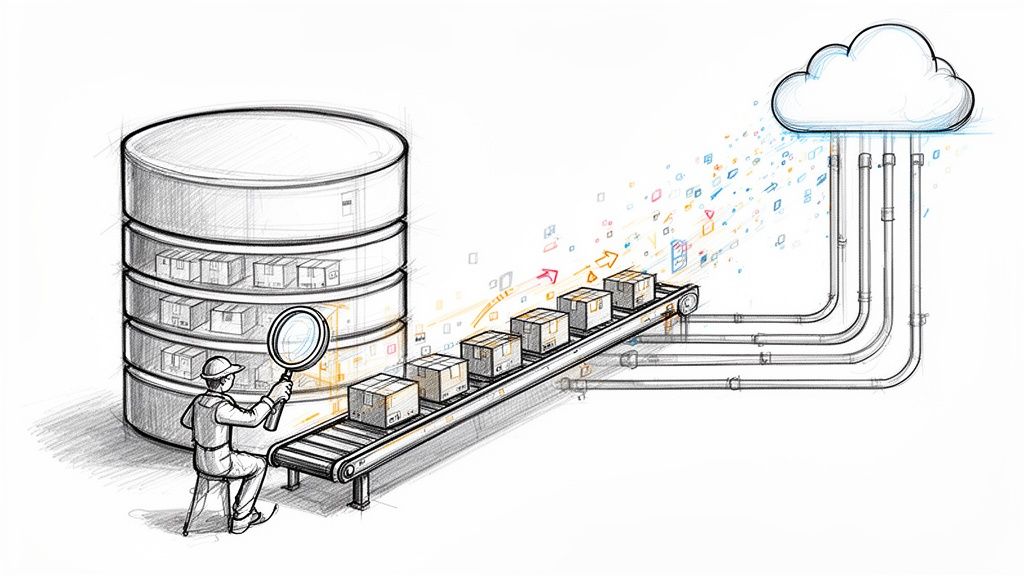
Think of your company's database like a bustling warehouse. Every day, thousands of items (your data) are received, moved around, or shipped out. The old-school way to track this activity was to shut everything down at night and do a full inventory count. This is basically how batch ETL (Extract, Transform, Load) works—it’s slow, disruptive, and by the time you get the report, it’s already out of date.
CDC offers a much better way. Instead of a nightly shutdown, imagine a sharp-eyed clerk standing at the warehouse door, making a note of every single item as it comes in or goes out. This clerk doesn't get in the way of operations but keeps a perfect, up-to-the-second log of everything that happens.
That’s exactly what CDC in SQL Server does for your database. It acts as that clerk by:
- Monitoring the Transaction Log: It keeps an eye on the database’s internal log, which is the definitive record of every single change.
- Capturing Granular Changes: It logs the individual
INSERT,UPDATE, andDELETEoperations, not just the final result. - Providing Low-Latency Access: It serves up this change history almost instantly for other applications and systems to use.
Why It's a Game-Changer for Data Engineering
This real-time, streaming approach completely changes the data game. Traditional batch jobs that run overnight just can't keep up with the demands of modern analytics, live dashboards, or operational machine learning. Today’s data teams need fresh, accurate information to make smart decisions now, not tomorrow. CDC delivers that.
To dig deeper into the fundamentals, check out our comprehensive guide on what is Change Data Capture, which breaks down the core principles.
A quick look at the two methods makes the difference crystal clear.
CDC vs Traditional Batch ETL at a Glance
As you can see, CDC is built for speed and efficiency, while batch ETL is a holdover from an era when "good enough" data was acceptable.
By capturing changes as they happen, CDC allows organizations to move from reactive, historical reporting to proactive, real-time analytics. It closes the gap between when an event occurs and when you can act on it.
This shift unlocks powerful new possibilities. Think of real-time inventory management, instant fraud detection, and dynamic customer personalization—all things that simply aren't possible with stale data. In the end, using CDC in SQL Server lets you build smarter, faster, and more efficient data systems without hammering the performance of your core databases.
How Change Data Capture Works Under the Hood
To really get what makes SQL Server CDC so powerful, you have to look past the surface and into its internal mechanics. It's best to think of it as a highly organized surveillance operation running silently inside your database, capturing every move without disrupting the day-to-day business.
The whole system is built on a few core components that work together flawlessly.
At the heart of it all is the Transaction Log. This isn't just some ordinary log file; it's the official, ordered history of every single thing that happens in the database. Every INSERT, UPDATE, and DELETE gets written here first to guarantee data integrity—a standard process called write-ahead logging. CDC cleverly piggybacks on this existing mechanism, which is what makes it so efficient.
The Capture Job: Your Lead Detective
When you enable CDC on a table, SQL Server assigns a special agent to the case: the Capture Job. This is a SQL Server Agent job that runs in the background, continuously scanning the transaction log like a detective reviewing security footage.
It reads the log records one after another, specifically looking for changes made to the tables you've told it to watch.
Because it’s just reading the log—something the database is already doing for recovery and other internal processes—it doesn’t have to hammer your production tables with queries. This hands-off approach is a huge win, as it keeps the performance impact on your active workload to an absolute minimum. The Capture Job does its work behind the scenes, gathering evidence without getting in the way.
Change Tables: The Official Case File
When the Capture Job spots a relevant change, it doesn’t just make a mental note. It meticulously records the details in a corresponding Change Table. For every source table you enable CDC on, SQL Server creates a new change table to serve as the official "case file" for that table's history.
These aren't simple copies of the rows, though. Change tables have a specific structure built to give you the full story of what happened, when it happened, and how. Key columns in a change table include:
__$start_lsnand__$end_lsn: These columns hold the Log Sequence Numbers, which act as precise chronological markers for when the change took place.__$seqval: This helps order multiple changes that occur within the very same transaction.__$operation: A simple integer that tells you what kind of change it was (1 = delete, 2 = insert, 3 = before-update value, 4 = after-update value).- Captured Columns: The actual data from the columns of the row that was changed.
The secret sauce here is the Log Sequence Number (LSN). You can think of an LSN as a unique, ever-increasing serial number stamped on every single record in the transaction log. It ensures that every change is captured and ordered with perfect precision, which is critical for maintaining chronological consistency in downstream systems.
The diagram below really brings this to life, showing how this streaming CDC flow is fundamentally different from the old-school batch ETL process.
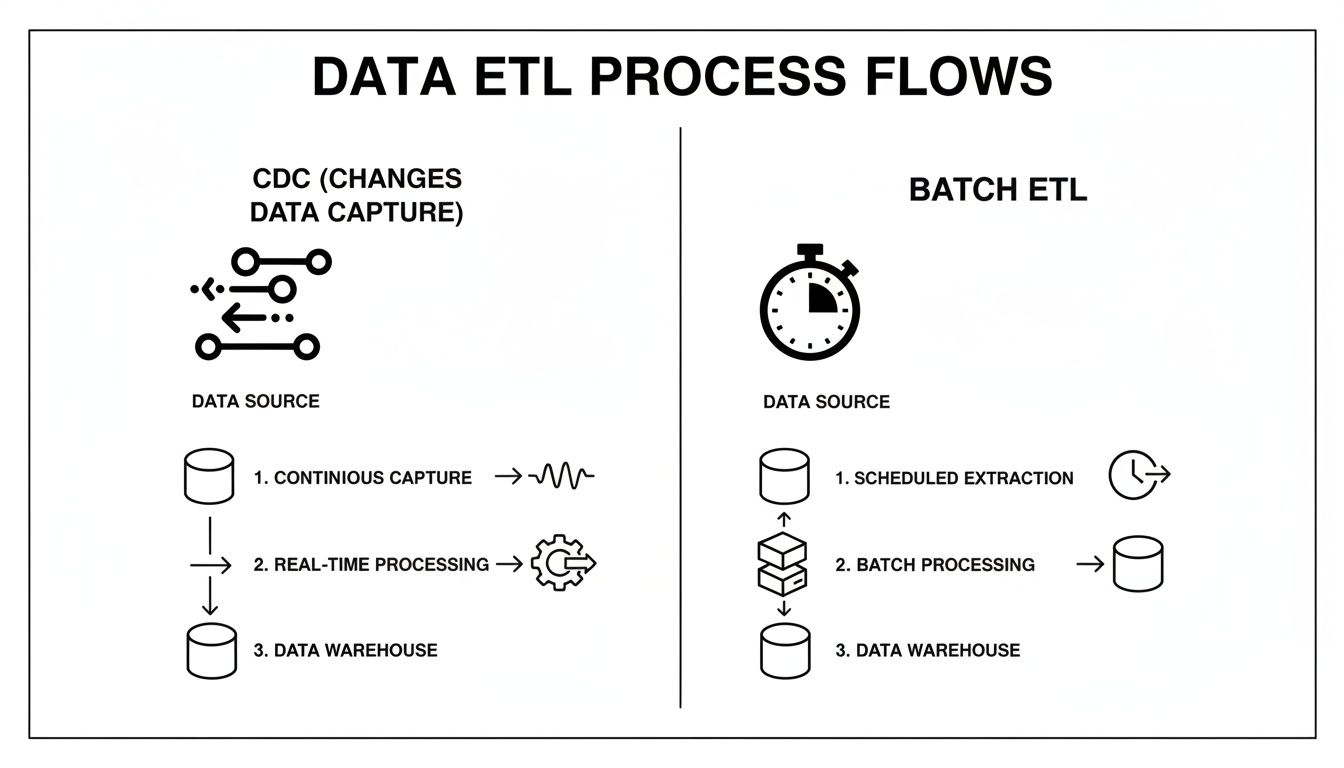
As you can see, CDC provides a continuous, low-latency stream of data. This is a stark contrast to the stop-and-start nature of batch processing, which always leaves you with data freshness gaps.
The Cleanup Job: Keeping Things Tidy
Of course, you can't just keep a record of every single change forever—you'd run out of space pretty quickly. That's where the second key process, the Cleanup Job, comes into play.
This is another SQL Server Agent job that runs on a schedule to purge old data from the change tables based on a retention period you define. This automated housekeeping is essential for managing storage and preventing the change tables from ballooning out of control.
This whole automated cycle—capture, documentation in change tables, and cleanup—makes SQL Server CDC a rock-solid and self-managing system. The recent spike in adoption, especially for newer SQL Server versions, shows a clear industry shift toward more agile data movement.
For example, recent analysis showed SQL Server 2022's market share jumped to 21% as organizations hurried to escape end-of-support deadlines for older versions. They're embracing its improved CDC features to build modern, low-latency data pipelines. You can read the full population analysis about SQL Server versions on brentozar.com. This trend highlights the critical role CDC plays in moving data from on-premises systems, which still host a staggering 98% of SQL Server deployments, to cloud destinations like Snowflake or BigQuery with minimal impact.
Getting CDC Up and Running in Your Database
Alright, let's move from theory to practice. Getting CDC working in SQL Server is a pretty straightforward process, but it requires a couple of precise steps. You first need to enable it for the entire database, and only then can you pick and choose the specific tables you want to track.
Before you even start, there are two crucial prerequisites. First, make sure the SQL Server Agent is running. CDC leans heavily on agent jobs to do its work—capturing changes and cleaning up old data—so if it's not running, nothing happens. Second, you’ll need to be a member of the db_owner fixed database role to run the system stored procedures that get everything started.
First Step: Flipping the Switch at the Database Level
The very first thing you have to do is enable CDC for the whole database. This step prepares the database by creating the system tables, functions, and jobs that CDC needs to operate. Think of it as laying the foundation before you can start building the house.
You can get this done with a simple T-SQL command executed against the database you're targeting:
USE YourDatabaseName;
GO
EXEC sys.sp_cdc_enable_db;
GO
Once you run this, SQL Server creates a new cdc schema and a handful of metadata tables inside it. These tables are where the configuration details for every table you track will live. You've just set up the main control room for all your CDC operations in that database.
Next: Targeting Specific Tables for Tracking
With the database prepped and ready, you can now pinpoint the exact tables you want to monitor. This is done one table at a time, which gives you fantastic control over what data gets captured. This selective approach is a lifesaver for managing storage and performance because you only track the changes you actually care about.
To enable CDC on a table, you'll use another system stored procedure. This command creates what's called a "capture instance" for the table, which is just the official term for its corresponding change table and the process that populates it.
Here’s how you'd enable CDC for an Employees table sitting in the dbo schema:
EXEC sys.sp_cdc_enable_table
@source_schema = N'dbo',
@source_name = N'Employees',
@role_name = NULL; -- Use NULL for public access or specify a gating role
GO
Let's quickly break down those parameters:
@source_schema: This is simply the schema where your source table lives.@source_name: The name of the table you want to track.@role_name: This is an optional but important security feature. You can specify a database role here, and only members of that role will be able to access the change data. If you set it toNULL, like in the example, anyone with the right permissions can query the change table.
After this command executes, SQL Server creates the change table (usually named something like cdc.dbo_Employees_CT) and kicks off the capture job to start pulling changes from the transaction log.
Key Takeaway: Enabling CDC is always a two-step dance: first the database, then each table. This design ensures you only take on the overhead for the tables where change tracking is truly needed, giving you precise control over your database's resources.
Fine-Tuning Your CDC Setup
Once CDC is enabled, you aren't stuck with the defaults. You can tweak several settings to better fit your needs, but two of the most important are the data retention period and the filegroup where the change tables live. Getting these right can have a big impact on storage and performance.
By default, SQL Server hangs onto change data for three days (72 hours). If you have a high-volume table, that might be way too long and could eat up a lot of disk space. Thankfully, you can adjust this when you create the capture instance. For example, to set a 24-hour retention period, you'd add another parameter.
EXEC sys.sp_cdc_enable_table
@source_schema = N'dbo',
@source_name = N'Orders',
@role_name = NULL,
@captured_column_list = N'OrderID, OrderDate, CustomerID', -- Optionally capture specific columns
@filegroup_name = N'CDC_Filegroup', -- Place change tables on a separate filegroup
@supports_net_changes = 1;
Specifying a dedicated @filegroup_name is a great performance tuning trick. It physically separates the I/O operations from your CDC workload and your main production workload. This helps prevent contention and keeps your primary data files from getting bogged down.
For more advanced setups, especially in the cloud, be sure to check out our detailed guide on Azure SQL Database Change Data Capture for cloud-specific advice.
Querying Change Data to Build Your First Pipeline
So, you've got CDC enabled, and it's quietly logging every single change in your database. Think of it as setting up a high-quality surveillance camera. But having the footage is one thing; knowing how to play it back and find the important moments is another. The next step is to tap into this stream of changes by querying the special change tables SQL Server has created for you.
This is where CDC really starts to shine. You're shifting from the old-school, clunky method of pulling entire tables every night to asking a much smarter question: "What's changed since I last checked?"
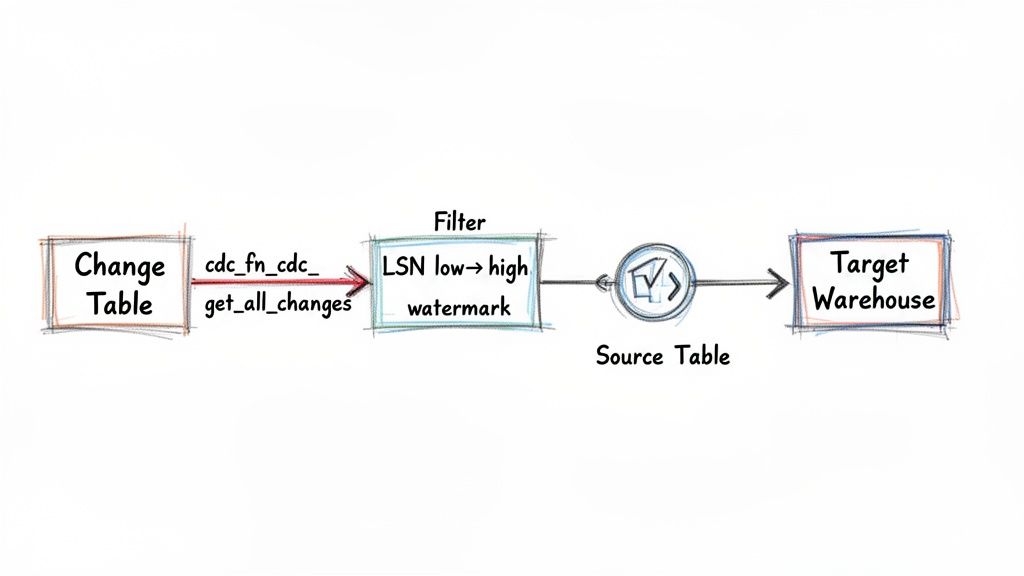
This incremental approach is the bedrock of modern data pipelines. It’s what allows companies to power real-time analytics, sync data between microservices, and build sophisticated event-driven systems.
Using CDC Functions to Access Change Data
Now, you don't just run a SELECT * against the change tables. SQL Server gives you a set of table-valued functions to serve as a clean, controlled gateway to the data. The one you'll use most often is cdc.fn_cdc_get_all_changes_<capture_instance>.
To use this function, you need to provide two Log Sequence Numbers (LSNs): a start point and an end point. You can think of LSNs as hyper-precise bookmarks in your database's history. By giving the function a start and end LSN, you're telling it exactly which window of changes you want to look at.
This whole process hinges on managing two crucial values in your data pipeline:
- Low Watermark: This is the LSN from the very last change you successfully processed. It’s your starting line for the next run.
- High Watermark: This is the LSN of the most recent change available in the database right now. This is your finish line for the current batch.
Essentially, your pipeline's main job becomes a simple loop: query for all changes between the low and high watermarks, process them, and then update your low watermark to the high one you just used. It’s a beautifully simple and reliable way to make sure you never miss a beat.
A Practical Query Pattern for Incremental Pipelines
Let's walk through what this looks like with a real example. Say you're tracking changes on a dbo.Products table, and its capture instance is dbo_Products. Your pipeline logic would look something like this.
First, you grab your LSN boundaries.
-- Get the LSN of the last change you processed (stored from the previous run)
DECLARE @from_lsn binary(10) = [Your Stored Low Watermark];
-- Get the LSN of the most recent change available now
DECLARE @to_lsn binary(10) = sys.fn_cdc_get_max_lsn();
With those in hand, you can now query the CDC function to get the actual data.
-- Query for all changes within the LSN range
SELECT
__$start_lsn,
__$operation,
ProductID,
ProductName,
Price,
LastUpdated
FROM cdc.fn_cdc_get_all_changes_dbo_Products(@from_lsn, @to_lsn, N'all');
That __$operation column is the magic ingredient. It tells you exactly what happened to each row:
- 1: A row was deleted.
- 2: A new row was inserted.
- 4: A row was updated (this shows the "after" value).
This pattern is the core of any custom CDC pipeline you'd build yourself. As data volumes continue to explode, efficient capture methods like CDC are no longer just a nice-to-have; they're critical. The global cloud database market, which heavily relies on transactional systems like SQL Server, is expected to jump from USD 28.78 billion in 2026 to USD 120.22 billion by 2034. You can read the full cloud database growth analysis from Fortune Business Insights to see just how massive this trend is.
By managing LSN watermarks, you build a resilient pipeline. If a job fails, it can simply restart from the last successful low watermark, preventing data loss or duplication without needing to re-process the entire source table.
Handling Updates and Getting Full Context
One little wrinkle you'll run into involves UPDATE operations. By default, an update can generate two entries in the change table: one for the "before" image (__$operation = 3) and one for the "after" image (__$operation = 4). The query example above uses the all option, which only gives us the final state, but other options can give you both.
Another common challenge is when your CDC setup only tracks a few key columns. To get the full picture of a changed row, you might be tempted to join back to the source table. Be careful here. This approach can create race conditions—the data in the source table could change again between when you read the change log and when you perform the join. It’s a tricky problem, and it's a big reason why many teams turn to dedicated platforms like Streamkap, which bypass these issues by reading directly from the transaction log for a perfectly consistent, real-time snapshot of your data.
Navigating CDC Performance Tuning and Limitations
Change Data Capture in SQL Server is an incredibly useful tool, but it's definitely not something you can just switch on and walk away from. When you enable CDC, you're adding a new, continuous workload to your database. Just like any other process, it needs to be monitored and tuned to make sure it plays nicely with your production environment.
The reason is simple: CDC introduces a small but constant amount of I/O overhead. Every single change made to a tracked table gets written to the transaction log, read by the capture job, and then written again to a dedicated change table. While this is all pretty efficient, it still uses up disk I/O and CPU cycles.
Tuning CDC for Better Performance
On a system with heavy transaction volume, you'll start to notice that overhead. The trick to keeping it under control is to get ahead of it with some smart tuning. One of the best things you can do is physically separate the CDC workload from your primary data.
By putting your change tables on a separate, dedicated filegroup—and ideally on different physical disks—you can stop I/O contention in its tracks. This simple step ensures that the constant writing to change tables doesn't slow down the reads and writes your main application needs to perform.
Here are a few other battle-tested tips for keeping CDC running smoothly:
- Adjust Retention Periods: The default retention period of 72 hours can be way too long for tables with a lot of activity. Shortening it will shrink the storage needed for your change tables and help the cleanup job run much faster.
- Monitor Job Latency: Keep an eye on the
latencycolumn in thesys.dm_cdc_log_scan_sessionsDMV. If that number starts creeping up, it means the capture job is falling behind, which is a classic cause of transaction log growth. - Optimize Cleanup: If the cleanup job itself is causing problems, you can try reducing the
@thresholdparameter in thesys.sp_cdc_cleanup_change_tablestored procedure. This tells the job to delete fewer rows in a single transaction, which can drastically reduce lock contention on busy systems.
Understanding Key CDC Limitations
Performance tuning is one thing, but it's just as important to understand the built-in limitations of SQL Server CDC. These are the sharp edges that often push teams to look for more complete, managed solutions. The biggest headache, by far, is how it deals with schema changes.
Natively, CDC does not automatically track or propagate DDL changes. If you add a new column to a table you're tracking, that column simply won't show up in the change table. The only way to start capturing it is to disable and then re-enable CDC on that table—a disruptive process that often leads to pipeline downtime and gaps in your data.
Another huge challenge pops up during database failovers, especially if you're using Always On Availability Groups. CDC will keep working on the new primary replica, but the application reading the change data has to be smart enough to handle the switch. It needs to:
- Recognize that a failover just happened.
- Figure out how to connect to the new primary server.
- Resume reading from the exact same LSN to prevent data loss or duplicates.
Building this kind of failover logic into a custom data pipeline is no small feat. It requires rock-solid error handling and state management. Without it, your data integrity is on the line every time a failover occurs. It’s these kinds of operational hurdles that make managing a homegrown CDC pipeline such a fragile and complex job.
Automating Real-Time Pipelines with a Managed Platform
Let's be honest: running a manual CDC SQL Server pipeline is a constant fight. You're stuck tracking LSN watermarks, coding failover logic from scratch, and scrambling every time a schema changes. These are fragile, time-consuming tasks that can easily break your entire data flow. This is precisely why modern, managed platforms have become so popular—they let you stop babysitting brittle infrastructure and start getting value from your data.
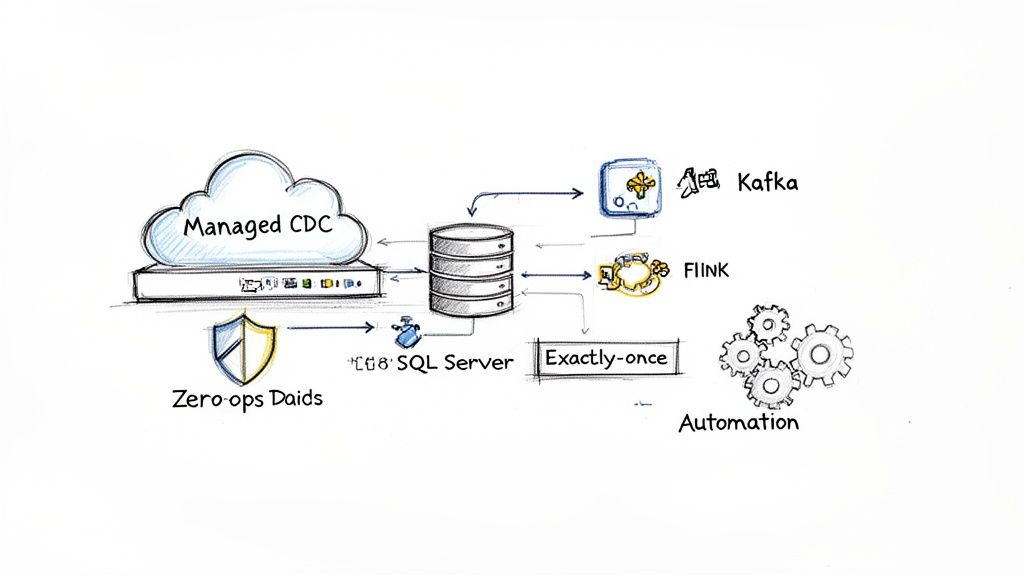
Instead of hitting the change tables with periodic queries and introducing latency, these platforms tap directly into the SQL Server transaction log. This log-based approach is far more efficient, capturing and streaming changes the very instant they're committed.
A Zero-Ops Approach to Streaming Data
A truly managed solution hides all that messy complexity. Think of it as taking the raw power of enterprise tools like Apache Kafka and Flink and wrapping them in an intuitive, zero-ops platform. You no longer need a dedicated team just to keep the streaming infrastructure alive, which dramatically lowers your total cost of ownership.
If you're looking to automate real-time pipelines and scale without the headaches, it’s worth exploring managed data platforms like Parakeet AI. This approach tackles the biggest pain points of doing CDC yourself:
- Automated Schema Evolution: Someone adds a new column to a source table? The platform spots the change and automatically applies it downstream. No frantic late-night fixes required.
- Exactly-Once Delivery: Through smart state management and transactional writes, the system ensures every single change is processed once and only once, even if things crash.
- Resilient Failover Handling: The platform handles connections and LSNs automatically during database failovers, keeping your pipeline running smoothly without missing a beat.
By offloading these operational burdens, your team can build reliable, scalable, and cost-effective real-time data architectures without the constant headache of pipeline maintenance.
This shift toward automation reflects a major industry trend. The ETL market is expected to jump from USD 8.85 billion to USD 18.60 billion by 2030, and Change Data Capture is a huge part of that growth. For data engineers, this means moving on from clunky old batch jobs to nimble, event-driven pipelines that deliver fresh data instantly.
To see how this works in a real-world scenario, check out our guide on https://streamkap.com/blog/how-to-stream-data-from-rds-sql-server-using-streamkap. It’s all about focusing your energy on innovation, not infrastructure.
SQL Server CDC: Your Questions Answered
We’ve covered the nuts and bolts of SQL Server CDC, but the real world is messy. Production environments fail, schemas evolve, and not everyone is running the top-tier version of SQL Server. Let's tackle some of the most common "what if" questions that pop up when you start using CDC in the wild.
What Happens to CDC If My SQL Server Fails Over?
This is a big one. In a high-availability setup like an Always On Availability Group, CDC does technically keep working after a failover to a new primary replica. But here's the catch: the transition is anything but smooth for your downstream data pipelines.
The real headache is managing the Log Sequence Number (LSN) chain. Your pipeline needs to be smart enough to recognize the failover, connect to the new primary, and pick up exactly where it left off. If it doesn't, you're looking at either missing data or, just as bad, processing duplicate records. Building the custom logic and monitoring to nail this every time is a serious engineering effort. It's one of the main reasons people turn to managed platforms that are built to handle this failover dance automatically.
How Does CDC Handle Schema Changes, Like Adding a Column?
Out of the box, SQL Server CDC doesn’t handle schema changes automatically. Let's say a developer adds a new column to a table you're tracking. That new column simply won't appear in the change table. Its data is effectively invisible to your CDC process.
To fix this, you have to manually disable and then re-enable CDC on that specific table. This creates a new capture instance that includes the new column, but it can also interrupt your data pipeline and might even require a full redeployment. Modern data platforms are designed to solve this by automatically detecting schema drift and propagating those DDL changes to your target system, keeping the data flowing without any manual gymnastics.
Can I Use CDC on Any Edition of SQL Server?
Nope, and this is a crucial point to understand before you get too far. Change Data Capture is considered an enterprise-grade feature. It's only available in the Enterprise and Developer editions of SQL Server.
It’s completely missing from the very popular Standard edition and the free Express edition. If your company runs on Standard, you can't use native CDC. You'd have to fall back on less ideal methods like triggers or timestamp-based polling, which can really hammer your production database's performance. For any serious, real-time data movement, this limitation often pushes teams to either upgrade their SQL Server license or use a third-party tool.
Ready to build reliable, real-time data pipelines from SQL Server without the operational headaches? Streamkap provides a fully managed, zero-ops platform that handles schema evolution, failovers, and exactly-once delivery automatically. See how you can sync your data in seconds.