A Practical Guide to CDC in SQL Server
Unlock real-time data with this guide to CDC in SQL Server. Learn to implement, query, and manage change data capture for modern data pipelines.
Change Data Capture (CDC) in SQL Server is a built-in feature that does exactly what its name suggests: it captures changes. Specifically, it records every insert, update, and delete made to a table you're tracking. This change history isn't just a log file; it's stored in dedicated "change tables," giving you a queryable, detailed audit trail of your data's entire lifecycle.
Why CDC in SQL Server is a Game-Changer
Think back to the old way of tracking data changes. You'd probably run a massive batch job overnight, comparing yesterday's data with today's. This was slow, hammered your database, and left you working with stale information. By the time you found a discrepancy, the business had already moved on. Real-time decisions? Forget about it.
Change Data Capture completely flips that script. Instead of clunky batch processes, CDC acts like a silent observer for your database. You tell it which tables to watch, and it meticulously logs every single modification—new records, updated values, and deleted rows—the moment it happens.
The real beauty of CDC is how it works under the hood. It gets its information by reading the SQL Server transaction log, the same log the database already relies on for recovery and consistency. This approach is incredibly efficient and has a minimal performance footprint on your live production database.
The core benefit of CDC is its ability to provide a low-latency, reliable stream of change events without requiring developers to alter the source application's code. It captures the 'what, when, and how' of data changes automatically.
From Batch Headaches to Real-Time Streams
When Microsoft introduced CDC in SQL Server 2008, it was a major leap forward. As data volumes exploded and the demand for instant insights grew, CDC became a go-to solution for moving beyond slow, periodic data pulls and into the world of real-time data streaming.
So, what can you actually do with this stream of changes?
- Live Analytics Dashboards: Power your BI tools with data that reflects what's happening in the business right now, not yesterday.
- Data Synchronization: Effortlessly keep a data warehouse, search index (like Elasticsearch), or a cache perfectly aligned with your primary database.
- Audit and Compliance: Maintain an ironclad, verifiable history of all data modifications to meet strict security and regulatory demands.
- Event-Driven Architectures: Use a change in the database—like a new customer signing up—to automatically trigger other business processes downstream.
In short, CDC in SQL Server is the engine for modern data pipelines. It provides the fresh, real-time information that today's data-driven world demands. To get a better handle on the core ideas, check out our broader guide on what is Change Data Capture.
How CDC Works Under the Hood
To really get why Change Data Capture is such a game-changer, you need to peek behind the curtain at its mechanics. It's not some mysterious black box; it's actually a clever, efficient process that leverages core SQL Server components that are already running.
It all starts with the transaction log. Think of the transaction log as the definitive, moment-by-moment diary of your database. Every INSERT, UPDATE, and DELETE is recorded here first before it's even written to the data files. CDC smartly taps into this existing stream of events, meaning it doesn't add any performance overhead to your actual database transactions.
The diagram below shows just how different this is from the old way of doing things. We're moving from clunky, high-latency batch jobs to a smooth, continuous flow of data.
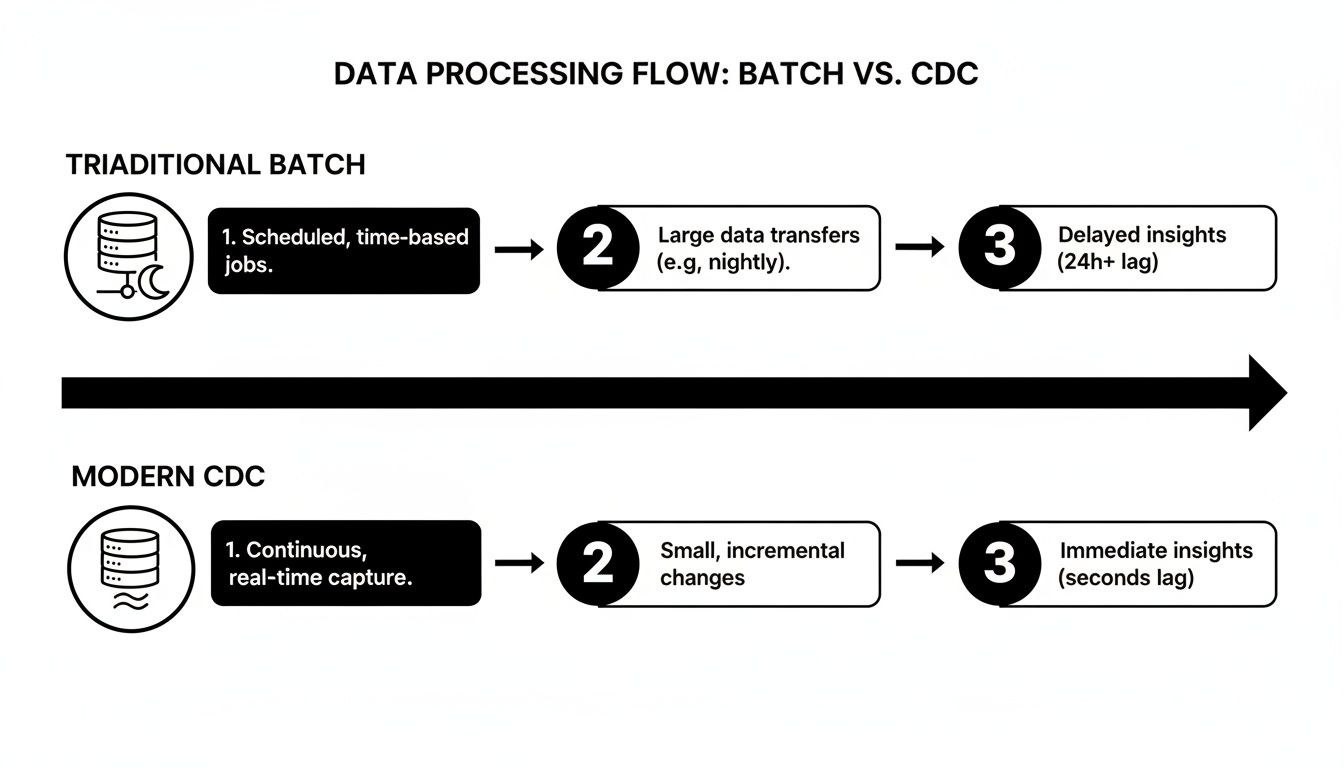
This shift from periodic data dumps to a near real-time stream is the fundamental value of using CDC in SQL Server.
The SQL Server Agent Capture Job
So, how do changes get from the transaction log to a place we can actually use them? That's the job of the capture job.
When you enable CDC, SQL Server creates a special SQL Server Agent job. This job's sole purpose is to continuously scan the transaction log. When it spots a change for a table you've marked for tracking, it springs into action.
It reads the change, figures out what happened, and packages it up neatly. This isn't just about copying the new data; it also captures crucial context, like whether it was an insert or delete, and the exact order it happened in, which is tracked by something called a Log Sequence Number (LSN).
The Change Tables
Once the capture job has processed a change, it stores this packaged information in a special change table. SQL Server automatically creates one of these for each table you enable CDC on.
So, if you start tracking a table named dbo.Customers, CDC will create a new table called cdc.dbo_Customers_CT. These tables become the historical ledger for your source table.
They contain two things:
- A mirror of all the columns from your original table.
- A few extra metadata columns that give you the story behind each change.
This is where the magic happens. The metadata columns transform a simple row of data into a rich historical event, telling you precisely what changed, when, and how.
Best of all, this design keeps your reporting and auditing work completely separate from your live production tables. You can query the change tables all day long without ever slowing down your main application.
Key Metadata Columns Explained
When you look inside a change table, you'll see a few columns that start with __$. These are the special metadata columns added by the capture process.
__$start_lsn: This is the Log Sequence Number for the transaction. It's the key to keeping every change in perfect chronological order.__$operation: A simple number that tells you what happened. 1 means delete, 2 means insert, 3 is the value before an update, and 4 is the value after an update.__$update_mask: ForUPDATEoperations, this bitmask tells you exactly which columns were changed. It's incredibly useful for seeing if only a single field was modified.
The Cleanup Job and System Tables
Of course, you can't just store every change forever—the change tables would grow infinitely. That's where the cleanup job comes in.
This is another automated SQL Server Agent job that acts as a housekeeper. It runs on a schedule to purge old records from the change tables based on a retention period you set. This keeps your CDC system from getting bloated and ensures performance stays snappy over the long term.
Behind the scenes, all of the configuration details—which tables are tracked, what their retention policies are—are managed in a set of system tables inside the cdc schema, like cdc.change_tables and cdc.lsn_time_mapping. These tables are the central nervous system for the whole CDC operation.
Enabling and Configuring CDC Step by Step
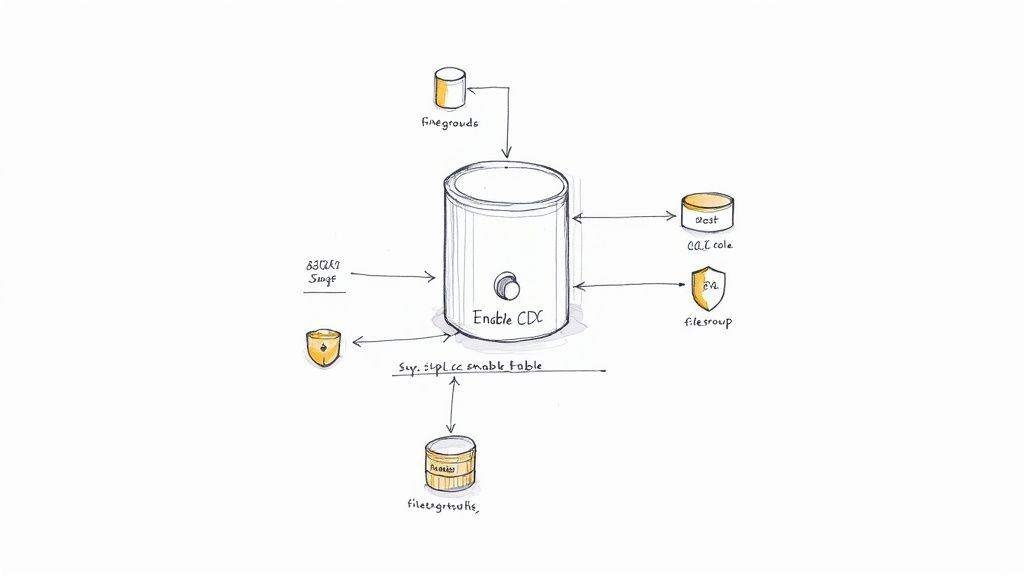
Alright, now that we've covered the "what" and "how" behind Change Data Capture, it's time to get our hands dirty. Turning on CDC isn't a single switch; it's a deliberate, two-step process. First, you'll enable it for the entire database, and only then will you pick the specific tables you want to watch.
This two-tiered approach is fantastic because it gives you precise control. You're never forced to track changes across every table, which is a lifesaver for managing performance and storage. Let's walk through the actual T-SQL commands you'll use to get everything up and running.
Step 1: Enable CDC on the Database
The very first command preps your database for CDC. Think of it as laying the foundation before you can start building the house. This one command creates the cdc schema, all the necessary system tables, and the capture and cleanup jobs we talked about earlier.
To switch on CDC for a database named YourDatabase, you just run a simple stored procedure:
USE YourDatabase;
GO
EXEC sys.sp_cdc_enable_db;
GO
That's it. This single command sets the stage for everything else. Once it runs, your database is officially CDC-ready, but remember, nothing is actually being captured yet. You still need to tell SQL Server which tables to keep an eye on.
Step 2: Enable CDC on a Specific Table
With the database prepped, you can now zero in on individual tables. This is where you get to specify which columns matter and how you want the change data handled. This level of control is exactly what makes CDC in SQL Server so powerful and flexible.
Let’s imagine we want to track changes on a table called dbo.Products. The command to do that looks like this:
EXEC sys.sp_cdc_enable_table
@source_schema = N'dbo',
@source_name = N'Products',
@role_name = N'cdc_access_role',
@supports_net_changes = 1;
GO
Let's quickly break down what these parameters do:
- @source_schema & @source_name: This is straightforward—it just points to the table you want to track, in this case,
dbo.Products. - @role_name: This is a crucial security feature. It creates a special database role (here,
cdc_access_role) that you can add users to if they need to read the change data. If you set this toNULL, only members of thesysadminordb_ownerroles can get to it. - @supports_net_changes: Setting this to
1is a smart move. It creates an extra non-clustered index and a function that helps you efficiently find the "net" changes, which is incredibly useful for data synchronization tasks.
Once you run this, SQL Server creates the cdc.dbo_Products_CT change table, and the SQL Server Agent capture job kicks into gear, starting its scan of the transaction log for any modifications to your dbo.Products table. This is a core process used in countless scenarios, including those we cover in our guide on Azure SQL Database Change Data Capture.
Verifying Your CDC Configuration
After you've set everything up, don't just walk away! You should always confirm it's working as you expect. A couple of quick queries against system views will tell you everything you need to know.
First, check if the database is enabled:
SELECT is_cdc_enabled FROM sys.databases WHERE name = 'YourDatabase';
If that query returns a 1, you're in business. Next, see which tables are being tracked:
SELECT name, is_tracked_by_cdc FROM sys.tables WHERE is_tracked_by_cdc = 1;
This will give you a list of all tables where CDC is active. Seeing your target tables pop up here is the final confirmation that your setup was a success.
Verifying your configuration is not just a best practice; it's a critical step to ensure your data pipelines will receive the change events you expect. A simple query can save hours of troubleshooting down the line.
The adoption of CDC is particularly strong in large companies where real-time data is essential. For instance, a leading CDC platform is used by over 2,000 companies, and 681 of these have more than 10,000 employees, showing how critical this technology is for large-scale operations. Find out more about these CDC adoption statistics on Integrate.io. This highlights that mastering CDC configuration is a valuable skill for data professionals working in enterprise environments.
How to Query and Use Change Data
So, you've enabled CDC. Now what? You've essentially turned on a time machine for your tables, creating a detailed log of every single change. But this raw data isn't much use until you know how to ask the right questions.
That’s where SQL Server’s built-in CDC functions come in. Think of them as specialized tools for navigating this change history. Instead of trying to piece together transaction logs manually (a messy and error-prone process), you use these functions to ask things like, "Show me every single thing that changed yesterday," or "Just give me the final version of the rows modified last hour."
This approach is simpler, faster, and far more reliable. Let’s look at how to decode the information CDC gives you and the two main functions you'll use to query it.
Decoding the Metadata Columns
Before you can build a query, you need to understand the language of the change tables. Every row CDC creates comes with a few special metadata columns that give you crucial context about what happened and when.
__$start_lsn: This is the Log Sequence Number (LSN). It's a unique identifier that marks the exact commit time of the transaction, allowing you to keep every event in perfect chronological order.- 1 = Delete
- 2 = Insert
- 3 = Update (this row shows the values before the change)
- 4 = Update (this row shows the values after the change)
__$update_mask: This is a bitmask that tells you exactly which columns were changed during an update. It’s incredibly useful for downstream processes that only need to act on specific field changes, saving a lot of processing overhead.Getting comfortable with these three columns is the key to unlocking the power of your change data.
Two Functions for Two Different Jobs
SQL Server gives you two primary table-valued functions for querying change data. They look similar but are designed for very different tasks. Picking the right one is critical for getting the results you need.
To make it clear, here’s a quick breakdown of the two main CDC query functions and when you’d want to use each one.
CDC Query Functions Compared
As you can see, choosing the wrong function can cause real problems. Using get_all_changes when you only need the final state, for example, forces your downstream systems to process a ton of redundant data, wasting time and resources.
Querying for a Complete Audit Trail
When you need the full, unabridged story of every change, cdc.fn_cdc_get_all_changes is the function you want. It’s perfect for auditing, compliance checks, or any historical analysis where every single step matters.
Imagine you need to track all modifications to your dbo.Products table. First, you'll grab the LSN range you're interested in, and then you'll pass it to the function.
-- First, get the LSN range for your query
DECLARE @begin_lsn BINARY(10), @end_lsn BINARY(10);
SET @begin_lsn = sys.fn_cdc_get_min_lsn('dbo_Products');
SET @end_lsn = sys.fn_cdc_get_max_lsn();
-- Now, query for all changes within that range
SELECT
__$operation AS Operation,
CASE __$operation
WHEN 1 THEN 'Delete'
WHEN 2 THEN 'Insert'
WHEN 3 THEN 'Update (Before)'
WHEN 4 THEN 'Update (After)'
END AS OperationDescription,
ProductID,
ProductName,
Price
FROM cdc.fn_cdc_get_all_changes_dbo_Products(@begin_lsn, @end_lsn, N'all');
This query acts like a detailed logbook. If a product's price was updated three times, you'd get back six rows for that single product: a "before" and "after" row for each of the three updates.
Querying for the Final State of Data
In many data integration scenarios, like feeding a data warehouse or updating a search index, you don't care about the journey—you just need the destination. This is where cdc.fn_cdc_get_net_changes is invaluable. It collapses all the intermediate changes for a row and gives you only its final state.
Using net changes is fundamental for efficient data synchronization. It reduces the data volume and simplifies the logic needed to update target systems like data warehouses or caches.
Let's use the same LSN range from before but switch to the "net changes" function:
-- Use the same LSN range from the previous example
SELECT
__$operation AS Operation,
ProductID,
ProductName,
Price
FROM cdc.fn_cdc_get_net_changes_dbo_Products(@begin_lsn, @end_lsn, N'all');
If that same product's price was changed three times, this query returns just one row—the final version of the record after the last update. This is massively more efficient for keeping other systems in sync because you avoid processing all the unnecessary historical states.
Keeping Your CDC Engine Tuned: Performance and Maintenance
Switching on Change Data Capture is a fantastic move, but it's definitely not a "set it and forget it" feature. Think of it like dropping a high-performance engine into your car—it needs regular checks and tune-ups to keep running smoothly and not blow a gasket. To successfully run CDC in SQL Server in a live environment, you have to actively manage its performance and stay on top of maintenance.
If you ignore the operational side, you're setting yourself up for two big headaches: sluggish database performance and runaway storage growth. The CDC capture job is pretty efficient, but it's still a constant background process scanning the transaction log. If your database gets hit with a massive burst of activity, the capture job can start to fall behind, creating a lag between what’s happening in your source tables and what shows up in your change tables.
Is CDC Keeping Up? Monitoring Latency and Throughput
The single most important question you need to be able to answer is, "Is my CDC process keeping up with the workload?" A long delay between a transaction committing and its appearance in a change table can completely defeat the purpose of building a near real-time data pipeline. Luckily, SQL Server gives us the tools to see what's going on under the hood with Dynamic Management Views (DMVs).
You can get a live look at the health of your capture job by querying sys.dm_cdc_log_scan_sessions. When you do, you’ll want to keep an eye on a few key metrics:
scan_phase: Tells you what the job is doing right now.duration: Shows how long the last scan took. If this number is consistently high, you might have a bottleneck.tran_count: The number of transactions it chewed through in the last session.latency: This is the big one. It's the time gap between a transaction hitting the log and the capture job picking it up. This is your most critical metric.
By watching this latency, you can set up alerts to warn you if the capture process is lagging. This gives you a chance to jump in and investigate before your downstream systems are affected. In a healthy CDC setup, you want to see this latency stay consistently low, usually just a few seconds at most.
Proactively monitoring CDC latency is the difference between a reliable data pipeline and one that's a constant source of "stale data" complaints. Don't wait for your users to tell you the data is old; know it first by watching the scan sessions.
Taming Storage Growth with the Cleanup Job
If you let them, your change tables will just grow and grow... and grow. They'll eat up precious disk space and eventually slow down any queries that hit them. This is where the CDC cleanup job comes in to save the day.
When you enable CDC on a database, SQL Server automatically creates this SQL Server Agent job. Its one and only mission is to purge old data from your change tables.
By default, the cleanup job holds onto data for three days (4320 minutes). For a system with a lot of transaction volume, that's way too long. You need to dial in a retention period that strikes the right balance between how much history you need and how much storage you can spare.
You can tweak this setting easily with the sys.sp_cdc_change_job stored procedure:
-- Let's change the retention to just 24 hours (1440 minutes)
EXEC sys.sp_cdc_change_job
@job_type = N'cleanup',
@retention = 1440;
Make a habit of checking the storage used by your change tables. If you spot them getting bigger than you expected, the first thing to verify is that the cleanup job is actually running successfully and that your retention policy still makes sense for your workload.
Handling Schema Changes Without Breaking a Sweat
Databases change. It's a fact of life. So, what happens when you need to add a new column to a table that you’re tracking with CDC? If you just run a simple ALTER TABLE statement, CDC won't even notice the new column. It won't be tracked.
To get CDC to recognize the new schema, you have to perform a quick reset on that specific table. It involves a few straightforward steps:
- First, disable CDC for the table using
sys.sp_cdc_disable_table. - Next, make your schema changes, like adding or dropping a column.
- Finally, re-enable CDC on the table with
sys.sp_cdc_enable_table.
It is absolutely crucial to script this out and test it in a development or staging environment first. With a little planning, you can handle schema changes gracefully without losing change data or breaking the pipelines that depend on it. A well-maintained CDC system is a resilient one.
Connecting CDC to Modern Data Pipelines
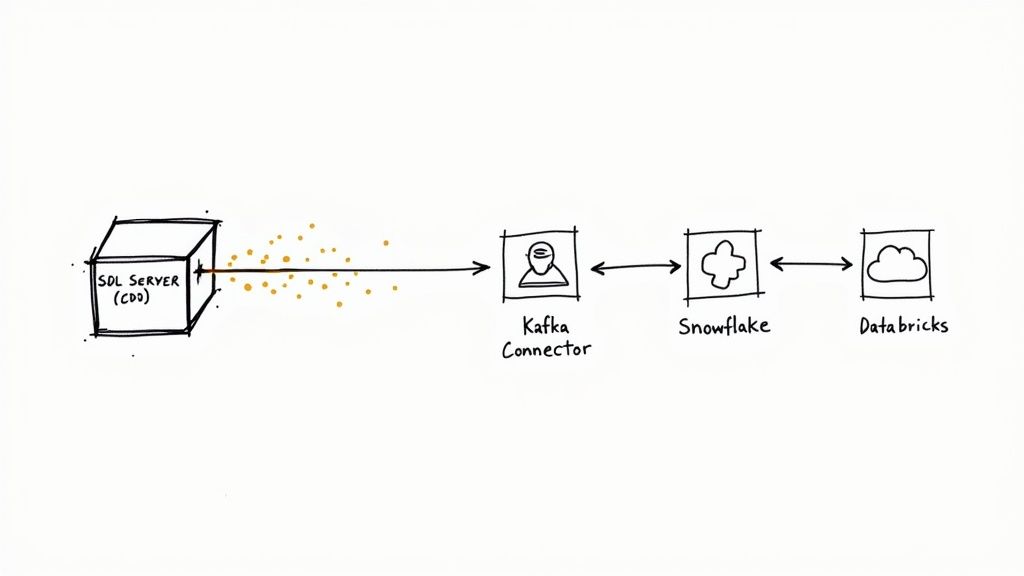
Capturing change data is one thing, but the real magic happens when you get that data into the hands of the people and systems that need it. Integrating CDC in SQL Server with modern data pipelines transforms your transactional database from a simple system of record into a live source of events. This opens the door to real-time analytics, seamless data synchronization, and powerful event-driven applications.
Ultimately, it’s all about getting the data out of those CDC change tables and into a streaming platform like Apache Kafka or a cloud data warehouse where it can be put to work.
The Leap from Polling to Streaming
For a long time, the go-to method was to build a custom service that constantly polled the CDC tables. You'd write an application to query the change tables every few seconds, check for new rows, and push them downstream. It worked, but it was clunky, introduced latency, and left you with a lot of custom code to maintain.
Thankfully, that manual polling model is giving way to a much more direct and automated approach. Modern CDC connectors build a seamless bridge, so you don't have to get your hands dirty with custom code or managing complex infrastructure.
Think of it this way: instead of constantly asking the database "is there anything new yet?", modern connectors just listen for the changes as they happen. This shift from a "pull" model (polling) to a "push" model (streaming) is the key to building genuinely low-latency data systems.
These tools manage the whole pipeline for you, from reading the raw change data to formatting it perfectly for its final destination.
Automating the Flow with Modern Connectors
Platforms like Streamkap are built specifically to automate this entire workflow. They act as a specialized connector that taps directly into SQL Server's CDC stream and replicates changes to your chosen destinations in near real-time. This completely eliminates the headache of building and managing your own polling services or Kafka infrastructure.
The process becomes remarkably straightforward:
- Connect: Point the tool at your SQL Server instance.
- Stream: The connector starts reading change data the moment it’s available.
- Deliver: It formats and streams the data directly to platforms like Snowflake, Databricks, or BigQuery.
This kind of automation is a game-changer for building reliable data pipelines. For example, if you're sending data to a cloud warehouse, knowing its specific ingestion methods is critical. You can learn more about how these technologies fit together in our guide on Snowflake Snowpipe Streaming with Change Data Capture.
When you're building out sophisticated pipelines that use CDC data, understanding how to orchestrate everything is key. Resources like a production-ready guide to Databricks and Airflow integration can offer crucial insights into scheduling and processing. By relying on automated connectors, you get to focus on using your data, not on the complex mechanics of moving it around.
Common Questions About CDC in SQL Server
Change Data Capture is a powerful tool, but like any sophisticated feature, it brings up a few questions when you first start digging in. Getting these cleared up early can save you a world of hurt down the road, especially once you're in production.
Let's walk through some of the most common questions that pop up when teams start working with CDC in SQL Server.
One of the first things people wonder is if CDC can handle big, one-off data loads. What about bulk operations? The answer is a solid yes. Whether you're using a BULK INSERT command or the bcp.exe utility, CDC sees these just like any other transaction. It diligently logs every single inserted row in the change tables.
What Happens When I Restore a Database?
This is a big one, and it catches a lot of people by surprise. You've got CDC running perfectly, you restore your database for a test or disaster recovery, and... poof. Your CDC configuration and all its change tables are gone. What gives? By default, SQL Server disables CDC on a restored database to prevent potential conflicts.
Thankfully, the fix is simple, but you have to be explicit. Just add one little clause to your restore command:
RESTORE DATABASE YourDatabase
FROM DISK = 'C:\Path\To\YourBackup.bak'
WITH KEEP_CDC;
The
WITH KEEP_CDCclause is your best friend for disaster recovery and environment refreshes. Without it, you’ll wipe out your change history and have to re-enable CDC from scratch, leaving a blind spot in your data tracking.
Does CDC Work with All SQL Server Editions?
It’s easy to assume a feature this useful is available everywhere, but that hasn't always been the case. For a long time, CDC was an exclusive feature of the pricey Enterprise Edition.
The good news is that Microsoft changed this starting with SQL Server 2016 Service Pack 1. Since then, CDC has been included in Standard and even the free Express editions. This was a game-changer, opening up powerful data streaming capabilities to almost everyone. Still, it's always smart to double-check your specific SQL Server version and edition before you build your whole architecture around it.
Can CDC Track Schema Changes Automatically?
This is a critical point to understand: CDC does not track schema changes. It's designed to capture Data Manipulation Language (DML) like INSERT, UPDATE, and DELETE, not Data Definition Language (DDL). If you ALTER a tracked table to add, drop, or modify a column, the capture job will stop in its tracks and likely start throwing errors.
Handling schema changes is a manual, multi-step process:
- First, you have to disable CDC on the table you're modifying.
- Next, go ahead and apply your schema changes.
- Finally, you need to re-enable CDC on that table so it can start tracking the new structure.
Getting this process scripted and baked into your deployment pipeline is crucial for maintaining a healthy CDC implementation long-term. Your database schema will evolve, and your CDC process needs to be ready for it.
Ready to build real-time data pipelines without the operational overhead? Streamkap provides a fully managed solution that uses CDC to stream data from SQL Server to destinations like Snowflake, Databricks, and BigQuery in seconds. Ditch the complexity of custom code and infrastructure management. Get started with Streamkap today.