A Practical Guide to S3 Source to Kafka with Streamkap
Learn how to build a real-time S3 source to Kafka with Streamkap. This guide provides actionable steps for setup, configuration, and optimization.
Connecting your Amazon S3 source to Kafka using Streamkap is all about building a real-time data pipeline. At its core, the setup continuously watches an S3 bucket for new files. Streamkap acts as the bridge, grabbing these files as they land, parsing them, and then streaming that data directly into your Kafka topics with very low latency. It effectively transforms your static object storage into a live, flowing data source.
Why Real-Time S3 to Kafka Streaming Matters Now
In a world where the freshness of data can make or break a business decision, treating Amazon S3 as just a static data lake is a huge missed opportunity. The old way of doing things—running slow, nightly batch ETL jobs to move data out of S3—creates major delays. By the time that data gets to analysts or applications, it’s already stale. That kind of latency just doesn’t cut it for modern, data-driven operations.
From Static Storage to a Live Data Hub
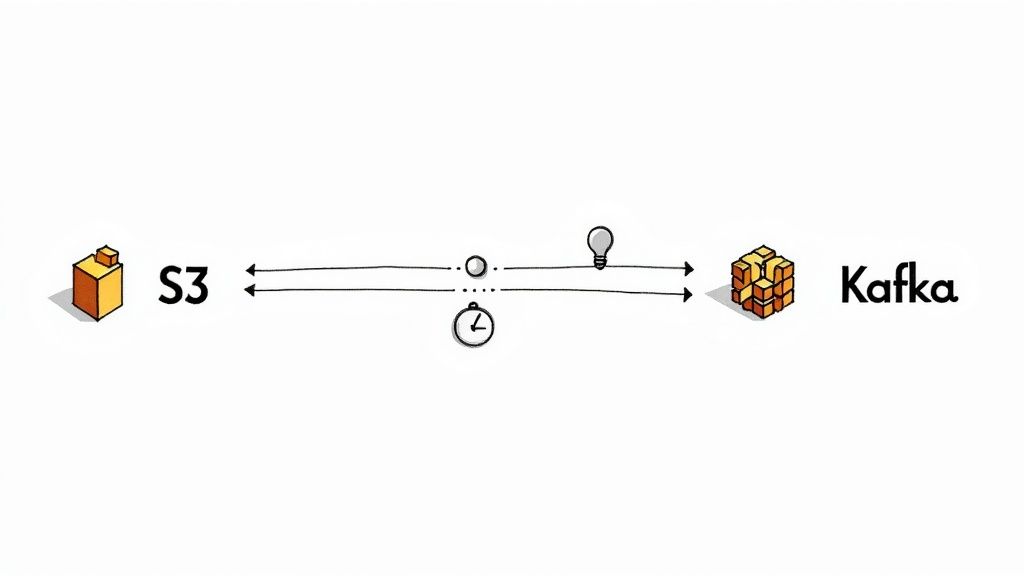
When you set up real-time streaming from an S3 source to Kafka with Streamkap, you’re essentially turning your object storage into a dynamic, event-driven hub. Think about it: application logs land in S3 and are instantly streamed into a security information and event management (SIEM) system for immediate threat detection. Or consider IoT sensor data arriving in S3 and being processed in milliseconds to trigger operational alerts and update live dashboards.
This shift in architecture brings some serious advantages:
- Immediate Data Availability: Downstream systems, whether they’re analytics platforms or microservices, can consume data the moment it’s created.
- Reduced Architectural Complexity: You can finally ditch the complex and brittle batch scheduling and orchestration tools.
- Enhanced Agility: Your teams can build truly responsive applications that react to events as they happen, rather than waiting on historical data dumps.
The Problem with Traditional Batch ETL
The entire data integration landscape has been moving away from batch processing for a while now. It’s no surprise that over 70% of Fortune 500 companies now use Apache Kafka for direct data ingestion, all driven by the need for faster insights. When you compare old-school ETL with direct Kafka streaming, companies are seeing up to a 40% reduction in data pipeline latency.
By unlocking the data held within S3 in near real-time, you enable a proactive approach to business intelligence. Instead of asking what happened yesterday, your teams can now ask what is happening right now, fundamentally changing decision-making processes.
This is where Streamkap becomes the critical piece of the puzzle. It constantly monitors the S3 bucket and prefix you specify, intelligently spotting new objects the instant they arrive. As soon as a new file is detected, Streamkap gets to work—reading, parsing, and streaming its contents as individual messages into your Kafka topics. The whole process is automatic and efficient, keeping your data constantly in motion.
You can dive deeper into the practical side of this in our guide on S3 real-time data integration.
Getting Your AWS and Kafka Environments Ready
Before you can build a solid pipeline from S3 to Kafka with Streamkap, you need to lay the right groundwork in both AWS and Kafka. Trust me, spending a little extra time on setup now will save you from major headaches later and guarantee a smooth, secure data flow right from the start. A good foundation in developing in the cloud is a huge help here, especially when it comes to configuring your AWS resources.
The first thing to tackle is locking down your AWS environment. This isn’t about giving Streamkap the keys to the kingdom; it’s about following the principle of least privilege. You’ll want to create a dedicated AWS IAM role just for the Streamkap connector. This role needs only the bare minimum permissions to list and read objects from your specific S3 bucket—and absolutely nothing more.
Crafting the Right IAM Policy
Steer clear of generic, overly permissive policies. The best practice is to create a custom inline policy that grants only s3:GetObject and s3:ListBucket permissions. Make sure you scope this policy tightly to the exact bucket and prefix your pipeline will be watching. This is a critical security step; it ensures the connector can only touch the data it’s supposed to, leaving the rest of your S3 data completely isolated.
Here’s a lean and mean JSON policy that does the trick:
{
“Version”: “2012-10-17”,
“Statement”: [
{
“Effect”: “Allow”,
“Action”: [
“s3:GetObject”
],
“Resource”: “arn:aws:s3:::your-bucket-name/logs/”
},
{
“Effect”: “Allow”,
“Action”: [
“s3:ListBucket”
],
“Resource”: “arn:aws:s3:::your-bucket-name”,
“Condition”: {
“StringLike”: {
“s3:prefix”: “logs/”
}
}
}
]
}
This is a great starting point. It grants read access exclusively to files located inside the logs/ prefix of your-bucket-name.
How to Structure S3 for Smart Discovery
The way you organize files in your S3 bucket has a direct impact on your connector’s performance. Just dumping files into the root of a bucket is a recipe for a slow, inefficient process. A far better approach is to use a logical, time-based prefix structure.
For instance, organizing log files this way works wonders:
s3://your-bucket/logs/YYYY/MM/DD/
This simple structure helps the Streamkap connector work smarter, not harder. It can efficiently scan for new files by focusing its search on a narrow path, like the current day’s prefix. This avoids pointless scans of old data, which means faster file discovery, lower S3 API costs, and less latency in your pipeline.
Prepping Your Kafka Topics
Getting things right on the Kafka side is just as crucial. Don’t just fire and forget your data into a generic topic. You’ll want to set up clear, consistent naming conventions that tell you exactly where the data came from and what it’s for, like s3_source.app_logs.raw.
Think about your data volume from the get-go. Picking the right partition count is not something to figure out later—it’s essential for getting the parallelism and throughput you need. A good starting point is to match your partition count to the number of consumers you expect to have, and then adjust from there.
Finally, for any production topic, set your replication factor to at least 3. This is non-negotiable for high availability and data durability, as it protects your pipeline if a broker goes down. Once these foundational pieces are in place, you’re all set to start configuring the connector itself.
Alright, with all the prep work out of the way, it’s time for the fun part: actually configuring the connector in Streamkap to get your data flowing. This is where we bridge the gap between your S3 bucket and your Kafka cluster. The good news is that the Streamkap UI makes this a pretty painless process, so you won’t need to get bogged down in complex scripting.
The first thing you’ll do is create a new Source in the UI and select Amazon S3. Streamkap will ask for the ARN of the IAM role you created earlier. You’ll just paste that in, which securely grants Streamkap the read-only access it needs to your S3 bucket. This approach is built on AWS best practices for cross-account access, so you can be confident your credentials are safe.
This diagram gives you a high-level look at how all the pieces fit together, from securing AWS to getting data into Kafka.
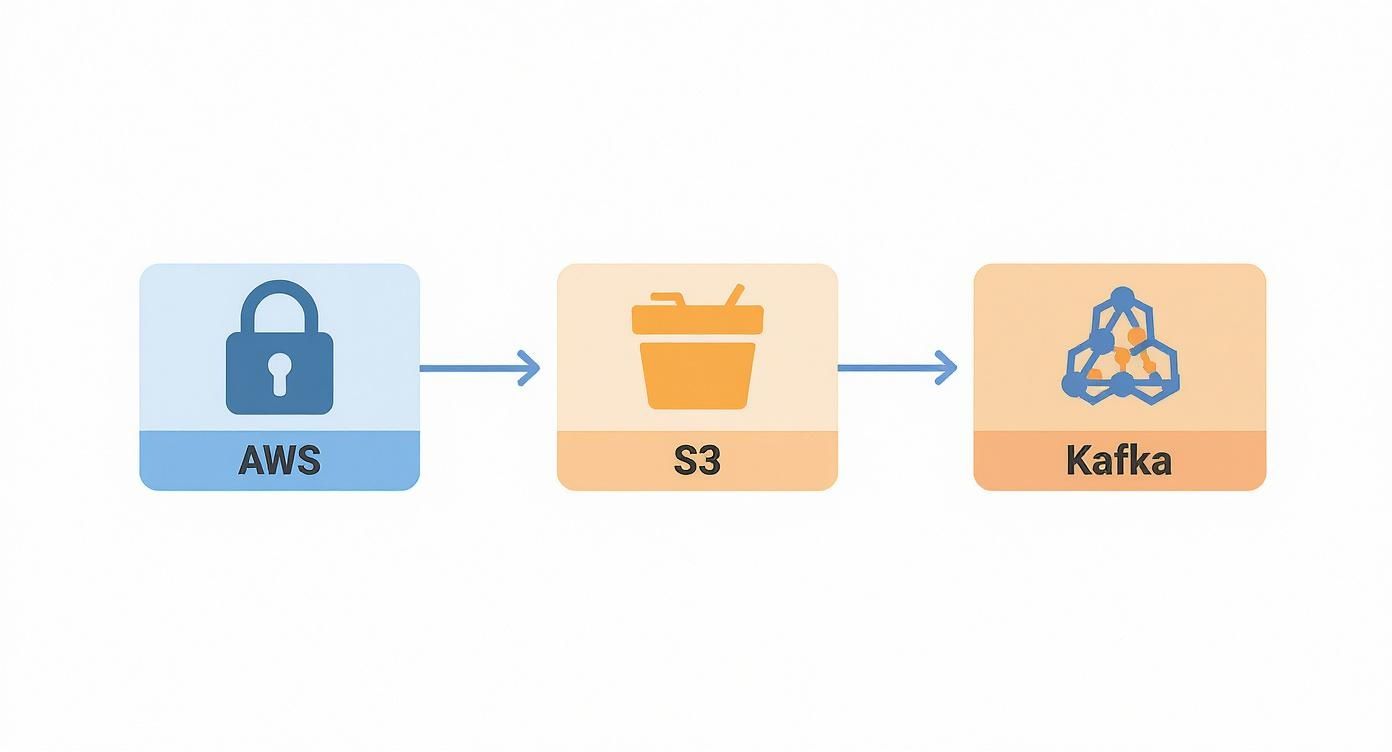
As you can see, getting the AWS and S3 structure right upfront is what makes this next step—configuring the actual data flow—so smooth.
Defining Your Data Source
Once you’ve authenticated, you need to tell Streamkap exactly which files to grab. It’s a simple but crucial step. You’ll need to specify two main parameters:
- S3 Bucket Name: The exact name of the S3 bucket where your data lives.
- S3 Key Prefix: The folder path inside the bucket that the connector should watch, like
logs/production/. This prevents it from trying to read files from other parts of your bucket.
Next up is defining the file format. Streamkap handles common formats like JSON and CSV right out of the box. Getting this right is critical because it tells the connector how to parse each file and break it down into individual records before sending them off to Kafka.
If you want to dig deeper into all the available settings, the official Streamkap S3 Connector documentation is a great resource.
Fine-Tuning Performance and Error Handling
Beyond the basics, Streamkap gives you some powerful knobs to turn for dialing in performance and handling the inevitable hiccups. The polling interval, for instance, controls how often the connector checks S3 for new files. A shorter interval means lower latency, but it also means more API calls and potentially higher costs. It’s a classic trade-off between data freshness and your AWS bill.
Robust error handling is another must-have. You can configure what happens if the connector stumbles upon a malformed file it can’t read. My advice? Set it up to log the error and skip the problematic file. This ensures that one bad file doesn’t bring your entire data pipeline to a screeching halt.
This becomes especially important in high-volume systems where data quality can be unpredictable. Remember, Apache Kafka is an absolute beast, built to handle massive throughputs—we’re talking up to 100,000 messages per second with latency as low as 10-20 milliseconds. To take full advantage of that power, you need to make sure your source is configured cleanly.
Pro Tip: Let’s say you’re streaming application logs that are stored as gzipped JSON files. I’d start with a polling interval of 60 seconds. Let it run for a bit, keep an eye on performance and S3 costs, and then gradually decrease the interval if you need faster data delivery.
Here’s what a sample configuration for that exact scenario might look like:
{
“name”: “s3-source-logs-prod”,
“config”: {
“connector.class”: “io.streamkap.connectors.s3.source.S3SourceConnector”,
“s3.bucket.name”: “my-app-logs-production”,
“s3.key.prefix”: “logs/json/”,
“format.class”: “io.streamkap.connectors.s3.format.json.JsonFormat”,
“kafka.topic”: “s3.logs.prod.raw”,
“tasks.max”: “1”
}
}
This simple JSON config tells the connector everything it needs to know: watch the logs/json/ prefix in the specified bucket, parse the files as JSON, and push the resulting records into the s3.logs.prod.raw Kafka topic. Simple as that.
Setting Up Your Kafka Destination in Streamkap
Okay, so you’ve got your S3 source configured and data is ready to flow. Now for the fun part: telling Streamkap where to send it. This is where we configure your Apache Kafka cluster as the final destination, completing the pipeline. It doesn’t matter if you’re running a self-hosted cluster or using a managed service like Confluent Cloud or Aiven; the process inside Streamkap is essentially the same.
The first thing you’ll need are your Kafka cluster’s bootstrap servers. These are just the initial contact points for Streamkap to connect to your cluster. Alongside the server addresses, you’ll provide the security credentials. Most of the time, this will be SASL/SCRAM authentication, which is just a fancy way of saying you’ll use a username and password (or an API key and secret) for a secure, encrypted connection.
Mapping S3 Data to Kafka Topics
Once Streamkap can talk to your Kafka cluster, you need to tell it which “mailboxes” to put the data in. In Kafka, these are called topics. I’ve found it’s always a good idea to create specific, descriptive topics that make it obvious where the data came from. Something like s3.application-logs.prod or s3.iot-sensor-data.raw works great. This kind of logical separation keeps things tidy and lets downstream applications subscribe only to the data streams they actually care about.
Streamkap makes this pretty easy. You can set up routing rules right in the destination configuration, ensuring every record from S3 lands in the right topic automatically. No need for manual intervention down the line. For a full deep-dive on all the settings, our complete guide on the Streamkap Apache Kafka Connector has you covered.
Don’t Let Schema Changes Break Your Pipeline
One of the classic pain points in any data pipeline is dealing with schema evolution. What happens when a developer adds a new field to the log files you’re streaming? Without the right setup, the whole pipeline can grind to a halt. This is precisely why integrating with a Schema Registry is a non-negotiable for serious production pipelines.
Streamkap’s built-in Schema Registry integration handles this for you, completely automatically. When it sees a new field in the S3 data, it simply registers a new version of the schema. This keeps the data flowing without a hitch and allows your consumer applications to adapt gracefully.
This is a lifesaver, especially if you’re using a format like Avro, which is built for this kind of thing. Offloading schema management to the platform means fewer broken pipelines and a much more resilient architecture.
Key Kafka Destination Settings in Streamkap
When configuring your Kafka destination, several parameters are crucial for performance, cost, and reliability. This table breaks down the most important ones to help you make the right call.
ParameterDescriptionCommon Use CasesSerialization FormatThe format used to write data to Kafka. Options typically include JSON, Avro, and Protobuf.Avro is best for production due to its compact binary format and robust schema support. JSON is great for development and debugging.Compression TypeThe algorithm used to compress data before sending it to Kafka.Snappy offers a good balance between compression speed and ratio. Use Gzip or ZSTD when you need maximum data reduction.acksThe number of broker acknowledgements required before a message is considered “sent”.acks=all provides the strongest durability guarantee. acks=1 offers a balance of durability and performance.**batch.sizeThe maximum amount of data (in bytes) Streamkap will collect before sending a batch to Kafka.Increase this for high-throughput topics to improve network efficiency and reduce broker load.linger.ms**The maximum time (in milliseconds) to wait before sending a batch, even if it’s not full.A small delay (e.g., 5-10ms) can increase batch sizes and improve throughput, but adds a bit of latency.
Choosing the right combination of these settings from the start is key to building a pipeline that is both high-performance and cost-effective.
Fine-Tuning for Performance and Cost
Finally, let’s talk about squeezing the most performance out of your pipeline while keeping costs in check. The two biggest levers you can pull are serialization and compression.
- Serialization: While it’s tempting to use JSON because it’s human-readable, Avro is almost always the better choice in production. It’s a binary format, so it’s much more compact and efficient. This translates directly to better throughput and lower storage bills.
- Compression: Always enable compression. It can drastically cut down on your network bandwidth and the amount of disk space your data takes up in Kafka. Snappy is a fantastic all-rounder, but if storage is your biggest concern, Gzip will give you a higher compression ratio.
The goal here is to move beyond slow, batch-based ETL and embrace real-time data movement. By getting these configurations right, you ensure your S3 source to Kafka with Streamkap pipeline is not just fast, but also built for the long haul.
Keeping Your Data Pipeline Running Smoothly
Getting your pipeline live is a great first step, but the job isn’t done. Now the real work starts: making sure it stays healthy, efficient, and reliable for the long haul. This isn’t a “set it and forget it” kind of system. Think of it as a living data flow that needs regular check-ups to perform its best.
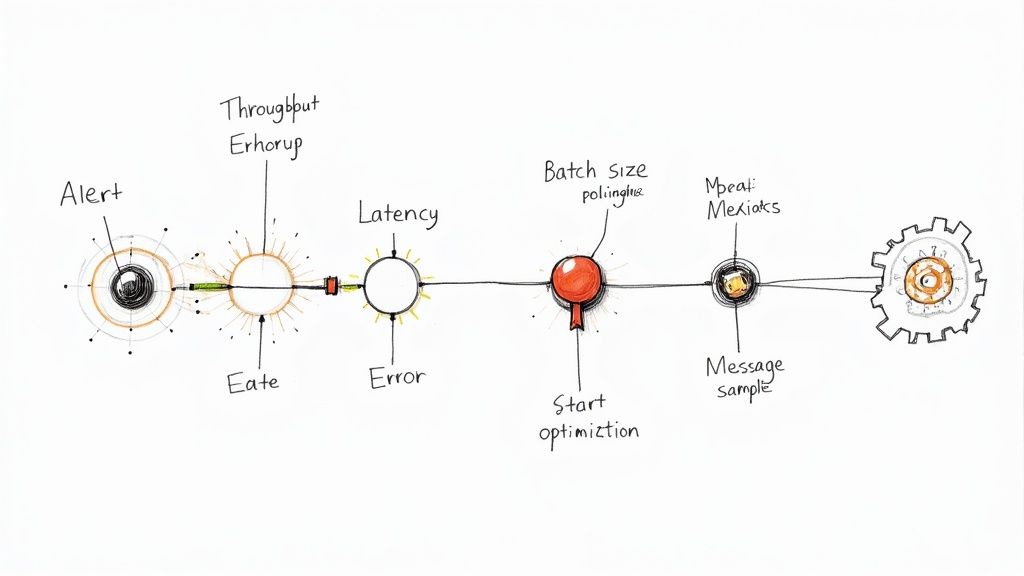
The very first thing you should do after launch is a simple sanity check: is data actually showing up where it’s supposed to? The quickest way I’ve found to do this is with the kafka-console-consumer CLI tool. Just tail your destination topic and you’ll see the raw messages stream in. It’s an incredibly direct way to confirm message structure, content, and that the connection is solid.
Keeping a Close Watch on Pipeline Health
Once you’ve confirmed data is flowing, your focus can shift from “is it working?” to “how well is it working?” This is where proactive monitoring comes in. Streamkap’s built-in monitoring dashboard is your command center for the S3 source to Kafka with Streamkap pipeline, and you should get very familiar with it.
Keep an eye on these vital signs:
- Throughput: How much data (messages or bytes) are you processing over time? A sudden nosedive can point to a problem with your S3 source or a bottleneck somewhere downstream.
- Latency: What’s the delay between a file hitting S3 and the message popping up in Kafka? If latency is consistently high, your connector’s polling interval might be too long for your needs.
- Error Rates: A spike in errors is the most obvious red flag. The dashboard is great for quickly identifying if the issue is in reading from S3, parsing the files, or writing out to Kafka.
Watching a dashboard is good, but you can’t stare at it all day. Set up automated alerts for the important stuff. You’ll want to be notified immediately about connection drops, authentication failures, or a jump in records that fail to parse. This way, you hear about problems long before your downstream consumers do. Integrating these practices into a structured workflow is also key; applying solid CI/CD pipeline best practices helps make your pipeline management more predictable and secure.
Fine-Tuning for Better Performance
Monitoring isn’t just about finding problems; it’s about finding opportunities to make things better. The metrics will tell you exactly where you can tweak your configuration to get that perfect balance between performance and cost.
Optimization isn’t just about raw speed. It’s about building an efficient, sustainable, and cost-effective data flow. You’d be surprised how much small configuration changes can impact your AWS and Kafka operational costs.
Here are a few key knobs to turn:
- S3 Polling Frequency: If latency is a concern, shortening the polling interval means the connector checks for new files more often. On the flip side, if the data isn’t super time-sensitive, you can lengthen the interval and cut down on S3 API costs.
- Batch Sizes: Dig into your Kafka destination settings. Bumping up the
batch.sizetells the connector to bundle more records into each request. This is great for throughput and eases the load on your Kafka brokers, but it might add a tiny bit of latency. - Data Formats: Maybe you started with JSON because it’s easy to read during development—we’ve all been there. For production, seriously consider switching to something like Avro. Its compact binary format and built-in schema support will dramatically cut your network bandwidth and storage footprint.
Got Questions About S3 to Kafka Pipelines?
Even the most well-planned data pipeline will throw a few curveballs your way. Let’s tackle some of the most common questions I hear when setting up an S3 source to Kafka with Streamkap, so you can get ahead of any potential issues.
How Does Streamkap Handle Different File Formats from S3?
This is where Streamkap’s flexibility really shines. When you set up the source connector, you simply tell it what you’re working with—be it JSON, Avro, or CSV. As long as the files are structured, Streamkap will parse them into individual records and stream them right into Kafka.
The one thing to watch out for is consistency. Make sure all the files within the S3 prefix you’re monitoring stick to the same format. I always suggest dropping a sample file in first to make sure the parsing works exactly as you expect before going live. It’s a simple step that can save a lot of headaches.
What Happens if Streamkap Finds a Corrupted File in S3?
A single bad file should never bring down your entire data flow, and Streamkap is built with that resilience in mind. By default, you can configure the connector to just log the error and skip any file it can’t read.
For production systems, I strongly recommend setting up a Dead Letter Queue (DLQ).
A Dead Letter Queue is a safety net. It automatically sends any unreadable file or unparseable message to a separate Kafka topic. This keeps your main pipeline running smoothly while isolating the problem data for you to analyze later.
This is a non-negotiable best practice for any serious pipeline. It ensures that unpredictable data quality won’t cause a complete operational halt.
Can I Transform S3 Data Before It Reaches Kafka?
Absolutely, and this is where you can really streamline your architecture. Streamkap supports in-flight transformations using Single Message Transforms (SMTs). Think of these as lightweight, on-the-fly operations that modify data as it moves from S3 to Kafka.
You can do a lot with SMTs, but here are a few common examples:
- Renaming fields to align with a schema your downstream systems are expecting.
- Masking sensitive data like PII to stay compliant.
- Adding new metadata, like a timestamp or the source file name.
Handling these small jobs inside the pipeline often means you can remove an entire processing stage later on, which is a big win for simplicity and lower latency.
How Close to Real-Time Can This Pipeline Get?
You’re in the driver’s seat on this one. The latency comes down to the connector’s polling interval—basically, how often it peeks into your S3 bucket for new files. If you need data flowing almost instantly, you can crank this down to just a few seconds.
Just remember the trade-off: more frequent polling means more S3 API calls, and that can bump up your AWS bill. It’s all about finding that perfect balance between data freshness and operational cost.
Ready to get your own data flowing? See how Streamkap can connect S3 to Kafka in minutes. Start your free trial today.
Related resources
Batch-to-Streaming Migration Playbook: Parallel Running and Output Validation
A practical guide to migrating batch ETL jobs to streaming pipelines, covering prioritization frameworks, parallel-run architectures, output validation techniques, and safe cutover mechanics.
Real-Time Data Pipelines for AI Agents: Architecture, Patterns, and Implementation Guide
A practical guide to building real-time data pipelines that feed AI agents with fresh context. Covers architecture patterns, streaming transforms, and step-by-step implementation.
The Startup Guide to AI Agents: Ship Your First Real-Time Agent in a Weekend
A step-by-step guide for startup teams to build their first AI agent powered by real-time streaming data. Go from zero to a working agent in a weekend.